Lately, I’ve been trying to get more consistent about recording videos, which has forced me to spend a lot more time figuring out my studio setup. If you’ve ever tried to build a simple recording setup for webinars, YouTube videos, or online workshops, you probably know how quickly things can get complicated. Cameras, microphones, lighting, streaming software, cables… it can feel like there are a lot of moving parts.
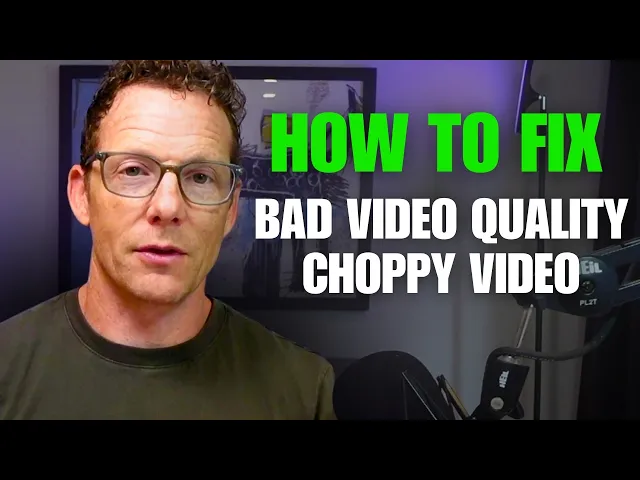
For a while, I was dealing with a problem that was driving me a little crazy. The video quality on my streams kept coming out choppy. Sometimes it even looked like I was moving like a robot. I knew something in my setup wasn’t right, but I couldn’t quite figure out what the issue was.
So I thought I’d walk you through what I discovered and how I ended up fixing it, because if you’re building a studio or trying to improve your video quality, this might save you some time.
The problem I was running into
Originally, my setup had a few different pieces working together.
I was using a DJI rig with a microphone setup for B-roll footage, and then I had another camera capturing my main video. The microphone would be routed through one device while the camera was connected to something else.
What I really wanted was a simple system where both the audio and video could feed into one place, whether that was Zoom, Riverside, or even EasyWebinar.
But every time I tried to run the setup through these live streaming tools, the video quality just wasn’t right. It would lag, drop frames, or look choppy.
My team kept suggesting different recording approaches, but the more I experimented, the more complicated everything felt. At one point, I was honestly thinking about just replacing the camera entirely.
The camera wasn’t the problem
Before I bought a new camera, I decided to talk to a couple of friends who helped me build the studio.
I told them I was ready to throw the camera out and start over. The camera I was using is a Sony ZV-1, which is actually a really solid camera for creators. It’s designed for vloggers and streaming setups, so it should have been working perfectly fine.
That’s when they told me something that surprised me. The camera wasn’t the problem. The issue was how everything was wired into the computer.
The small fix that changed everything
They suggested two simple pieces of hardware that ended up fixing the entire problem.
The first was a 4K Micro HDMI to HDMI cable adapter. It’s a small cable that connects the camera directly to the computer in a much cleaner way.
I’m not going to pretend I understand all the technical details behind what it’s doing, but I do know this: it cost about nine dollars, and it completely changed the way the video signal was coming through.
The second piece of equipment was the Elgato Cam Link 4K.
This is essentially a capture card that turns your camera into a high-quality streaming webcam. Once I connected the camera’s HDMI output into the Cam Link and then plugged that into the Mac Mini, the video quality improved immediately.
Now the camera streams in full 4K quality, and the difference in clarity is pretty noticeable. Sometimes the solution isn’t buying new gear. It’s just understanding how the gear you already have should be connected.
My current studio setup
Once the camera issue was solved, the rest of the studio started to come together.
Right now, the setup includes a few different lighting sources. I have a softbox light off to one side, another overhead light that adds brightness to the frame, and a ring light that I sometimes use depending on the look I want.
There’s also a teleprompter positioned in front of the camera, which is actually what I’m looking at when I’m recording. The camera sits directly behind the teleprompter glass so that I can read notes while still looking straight into the lens.
Behind me, I’ve been experimenting with different lighting setups to create a little more depth in the background. I have some lights that I can control from my phone, so I can adjust colors and brightness depending on the mood I want in the video.
There are still a few things I plan to improve over time, like adding LED strips around parts of the studio and refining the background a bit, but overall, the setup is working really well now.
The microphone setup
A lot of people also ask what microphone I use. The mic I’ve been using for a long time is a Heil microphone, which is a solid podcast-style microphone that delivers really clean audio.
That mic runs into a Focusrite Scarlett interface, which is basically a small red audio box that connects the microphone to the computer. From there, the audio goes directly into my Mac Mini.
It’s a pretty simple setup, but it produces great sound quality and has been very reliable.
The lesson from all of this
The biggest takeaway from this whole experience is that sometimes, when something in your studio isn’t working, the instinct is to replace equipment.
But often the real issue is how everything is connected together. In my case, I didn’t need a new camera. I just needed the right HDMI adapter and capture card so the signal could flow into the computer properly.
Once that was fixed, the video quality improved immediately. And if you go back and look at some of my more recent videos, especially the ones recorded through Riverside, you’ll probably notice that the clarity is much better now.
Final thoughts
Creating video consistently is one of the most powerful ways to connect with your audience.
Whether you’re running webinars, building a YouTube channel, or teaching workshops online, having a studio setup that works smoothly makes the process a lot easier and far less stressful.
I’m still experimenting and improving things as I go, but this current setup has made recording and streaming much more reliable.
If this video or breakdown was helpful, feel free to subscribe to the channel. I’ll keep sharing more behind-the-scenes insights on video creation, webinars, business growth, and how to use online events to build stronger connections with your audience. I’ll see you in the next one.